






To deposit funds into your AMarkets trading account, you must complete the verification of your personal information. However, to withdraw funds, you must also verify your payment method.
Important: Before making a withdrawal, all payment methods used for deposits must be verified.
For step-by-step guidance, you can read the instructions below or watch our
video tutorial.
How to verify a payment method
- Physical bank card verification
- Virtual bank card verification
- Perfect Money account verification
- Volet account verification
Physical bank card verification
To verify your bank card quickly and successfully, follow these steps:
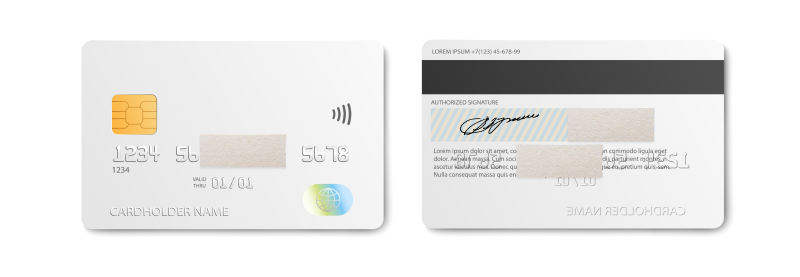
1. Take a clear photo of your physical card (not a scan or copy).
- The first 6 digits and the last 4 digits of the card number must be visible on both the front and back.
- The middle digits should be covered with paper or an editing tool. The embossed (raised) card number on the back must also be covered.
- The CVV code must be covered.
- All information on the card must be clearly legible.
- The card’s expiration date must be visible and valid.
- The card must not be cropped in the photo.
Please note: Third-party bank cards cannot be verified. The name on the card must match the name in your AMarkets account.
2. Upload the photos in the “Payment method verification” section of the “Finance” menu.
3. If your card does not display your name or the name is hard to read, you must also upload one of the following:
- A bank certificate with an official bank seal, showing your name and card number.
- A screenshot from your online banking account displaying your name and the last 4 digits of the card number.
Virtual bank card verification
To verify a virtual bank card:
1. Take a screenshot from your banking app or personal account. The screenshot must display:
- The last 4 digits of the card number.
- Your full name.
- The expiration date of the card.
- A note indicating that your card is virtual.
Alternatively, you can upload a bank certificate confirming your ownership of the virtual card. The certificate must include:
- Your full name.
- The card number.
- The expiration date.
- A bank seal.
Important: Third-party virtual cards cannot be verified. The name on the card must match your AMarkets account details.
2. Upload the screenshot or certificate to the “Finance” -> “Payment method verification” section and click “Submit.”
Perfect Money account verification
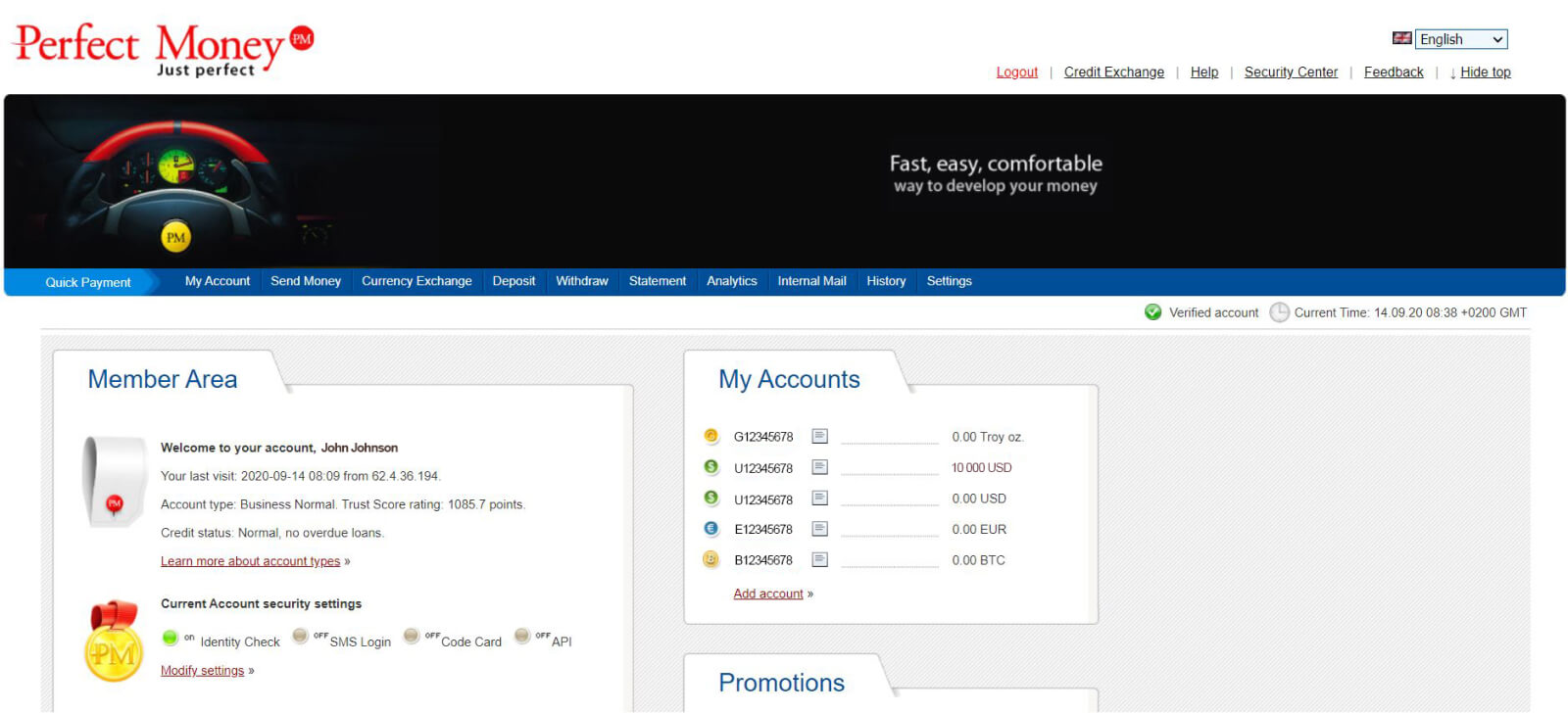
1. Log in to your account using your username and password. Then follow this link. Go to the “My Account” tab. Ensure that your full name, account verification status, and account numbers are visible.
2. Take a screenshot of this page using the Print Screen button or the “Scissors” tool and save it to your computer.
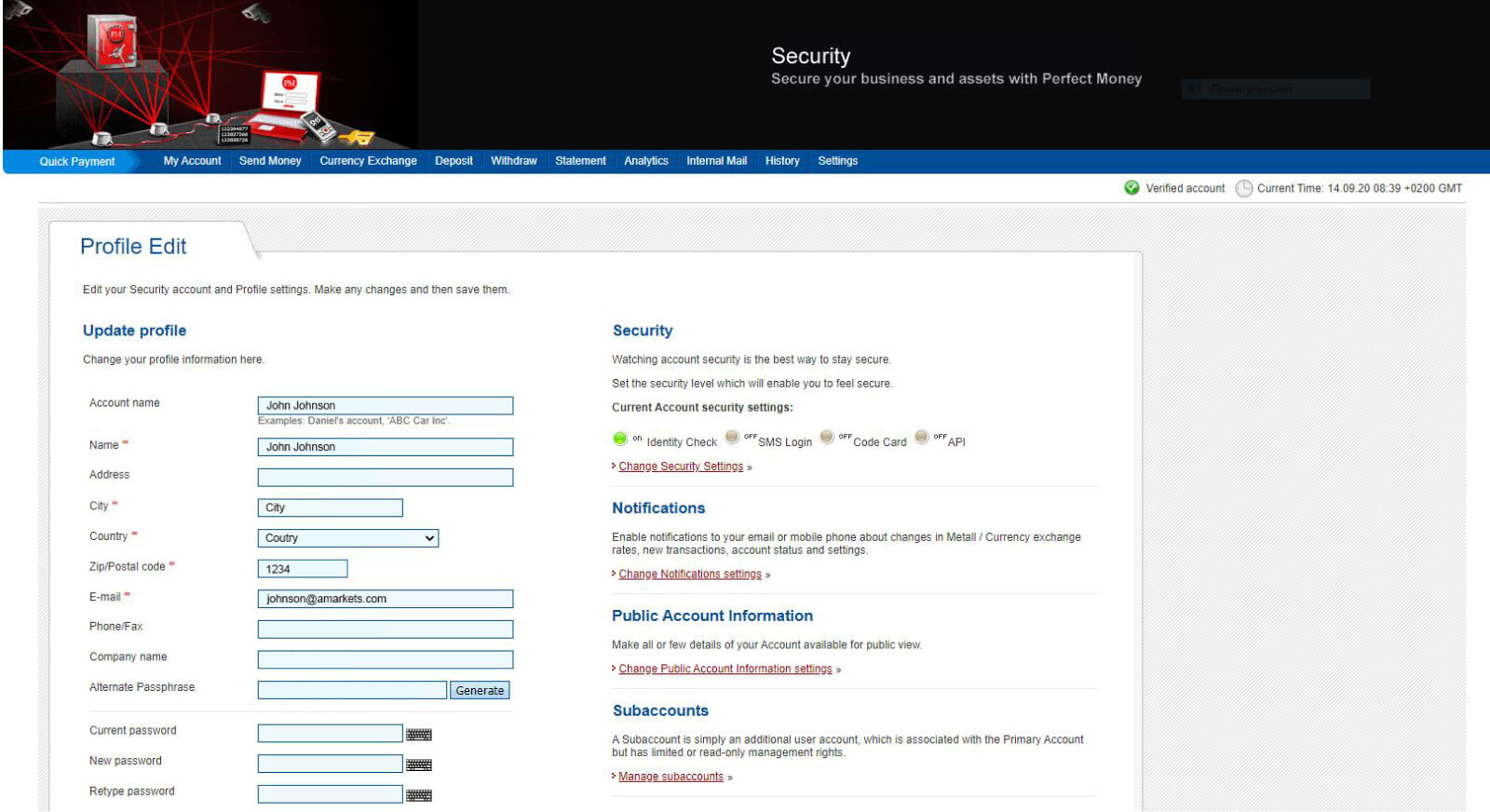
3. Next, follow the link and navigate to the “Settings” section, where you can view your personal details, including your full name, email, and phone number. This information must match the details in your AMarkets account (Personal Area).
4. Take a screenshot of this page as well and save it to your computer.
5. Upload both screenshots in the “Finance” -> “Payment method verification” section and click “Submit.”
Important: To complete the verification successfully, we require screenshots of both the “My Account” and “Settings” tabs. This allows us to verify your identity based not only on your full name but also on additional personal details such as your phone number, address, and email. Your Perfect Money account must be verified.
Volet account verification
1. Log in to your account using your username and password.
2. Follow this link and navigate to the “Personal info” section.
Ensure your full name, address, phone number, email, verification status, and account numbers are visible. Your full name and phone number must match the details in your AMarkets account.
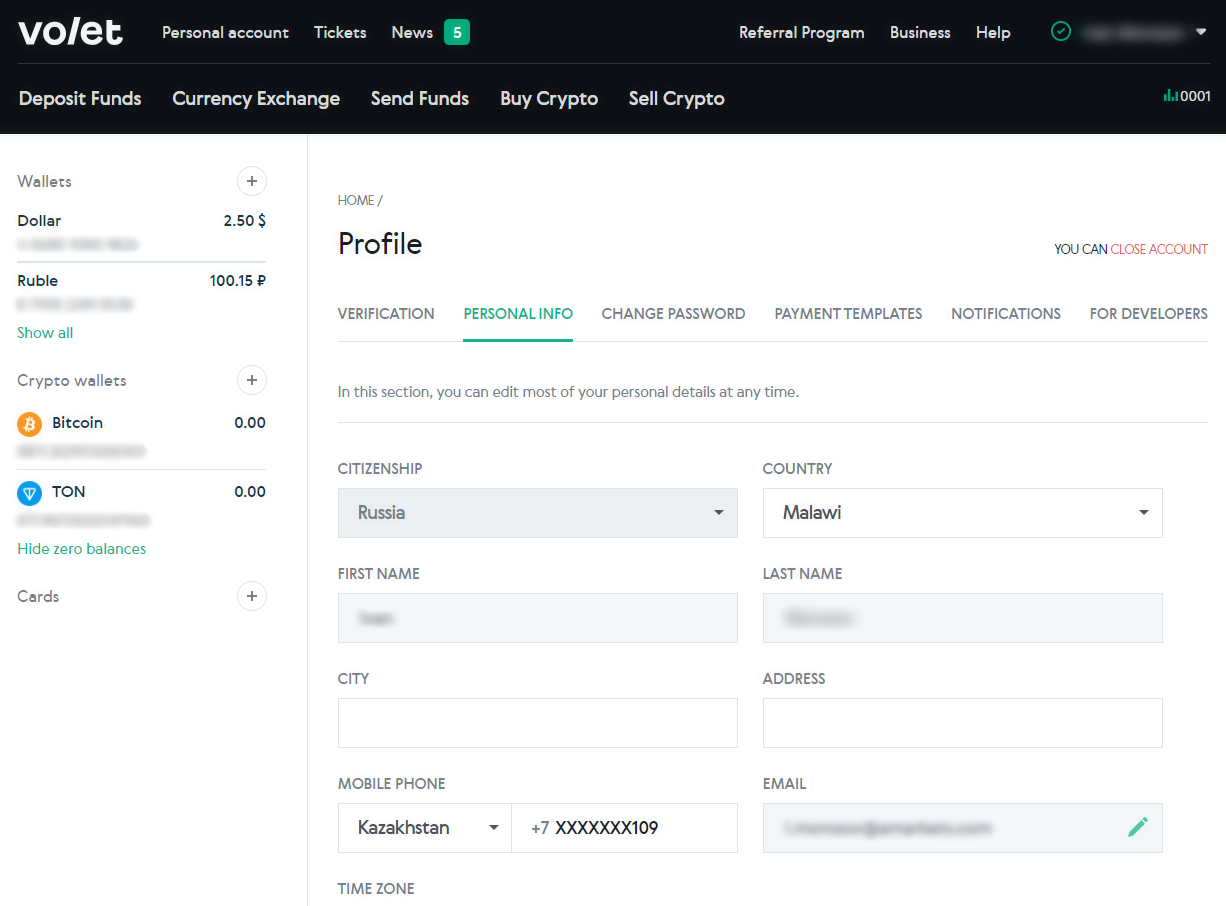
3. Take a screenshot of this tab using the Print Screen button or “Scissors” tool and save it on your computer.
4. Upload the screenshot in the “Payment method verification” section of the “Finance” menu.