






Before you can start trading with AMarkets, you need to complete the personal data verification process. You can follow the steps outlined in this article or watch the video tutorial:
Steps to verify your personal information
- Log in to your AMarkets account.
- Go to “My Profile” ⇒ “Documents” ⇒ “Add Document”.
Verification on PC
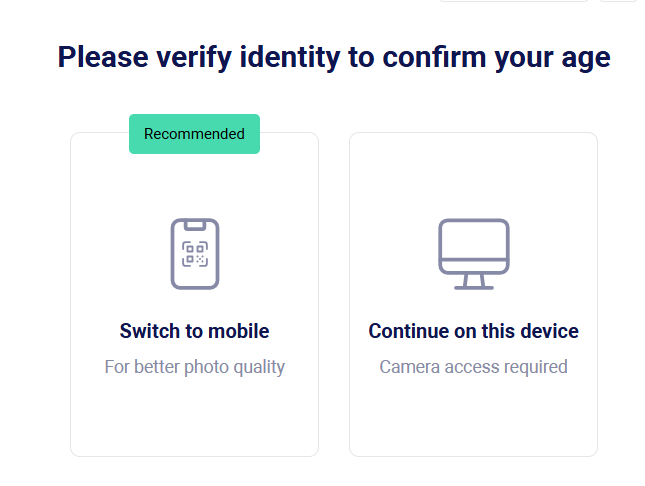
- Click “Continue on this device” on the page that appears.
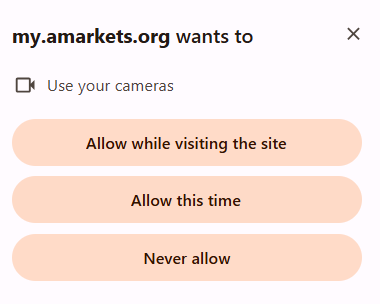
- Click “Take a picture.” If prompted, allow the browser to access your camera.
- Capture a clear photo of your document and click “Scan Document.” If needed, click “Retake” to take a new photo.
If needed, click “Retake” to take a new photo.
Depending on the document type, you may need to scan the back side.
- Enter your personal details exactly as they appear on your ID:
- first name
- last name
- date of birth
- gender
- Click “Continue.”
Verification on a smartphone
- Click “Switch to mobile” on the page that appears.
- Use your smartphone camera to scan the QR code displayed on your screen.
*Alternatively, you can copy the provided link and open it in your mobile browser.
- Tap “Take a photo” and capture a clear image of your document.
- Click “Scan Document.”
If needed, click “Retake” to take a new photo.
Depending on the document type, you may need to scan the back side.
- Enter your personal details exactly as they appear on your ID:
- first name
- last name
- date of birth
- gender
- Click “Continue.”
Your document and personal information will be automatically verified within a few minutes. Once verified, you can proceed to fund your account.
Accepted documents for verification
- Internal passport
- International passport
- ID card